Introduction
Admin Overview
The admin console is where you configure the system wide settings such as 3rd party services, billing configurations, visibility controls etc.
To access the system admin navigate to https://console.fleetbase.io/admin/
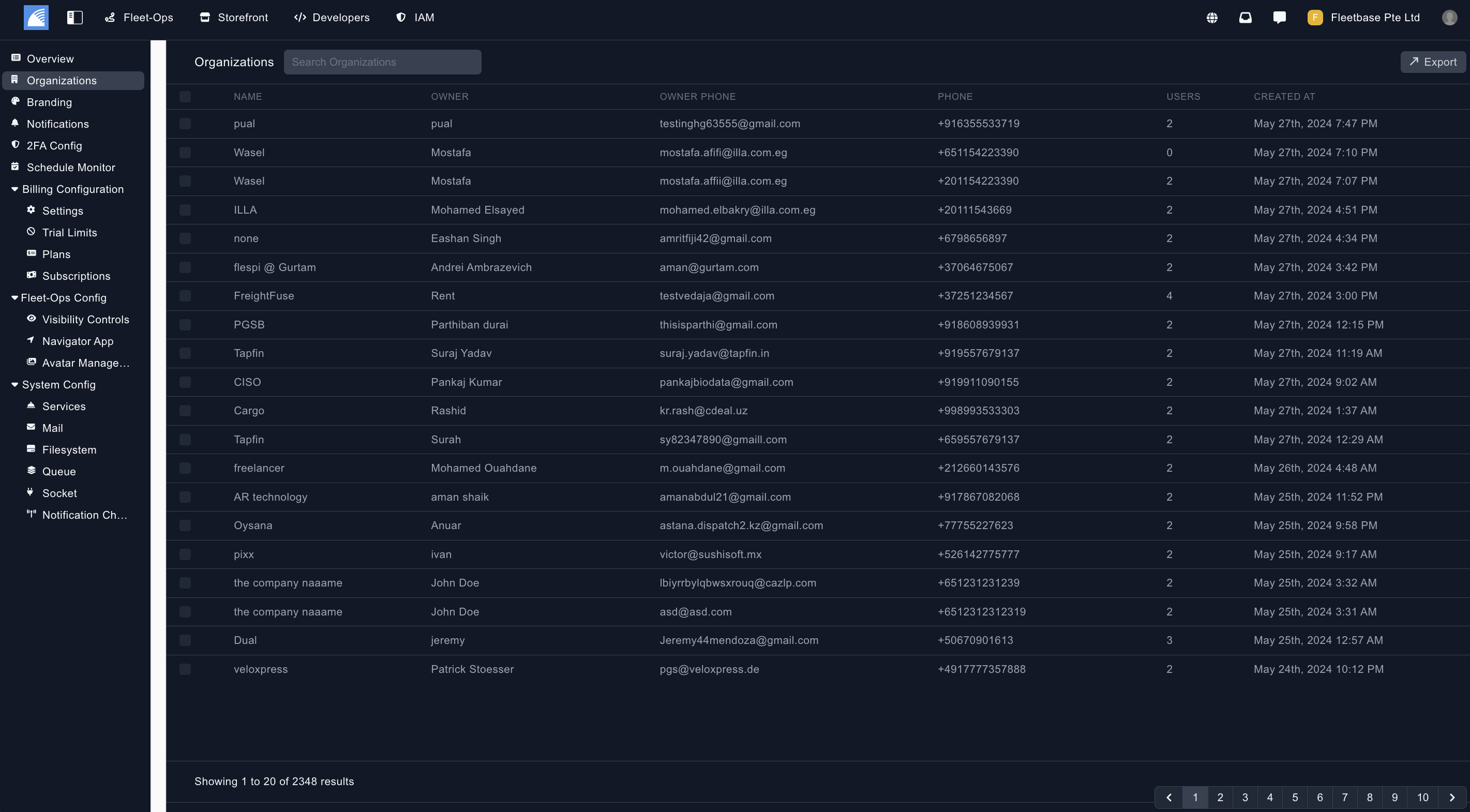
Organisations
View all of the organisations and users signed up to your Fleetbase instance.
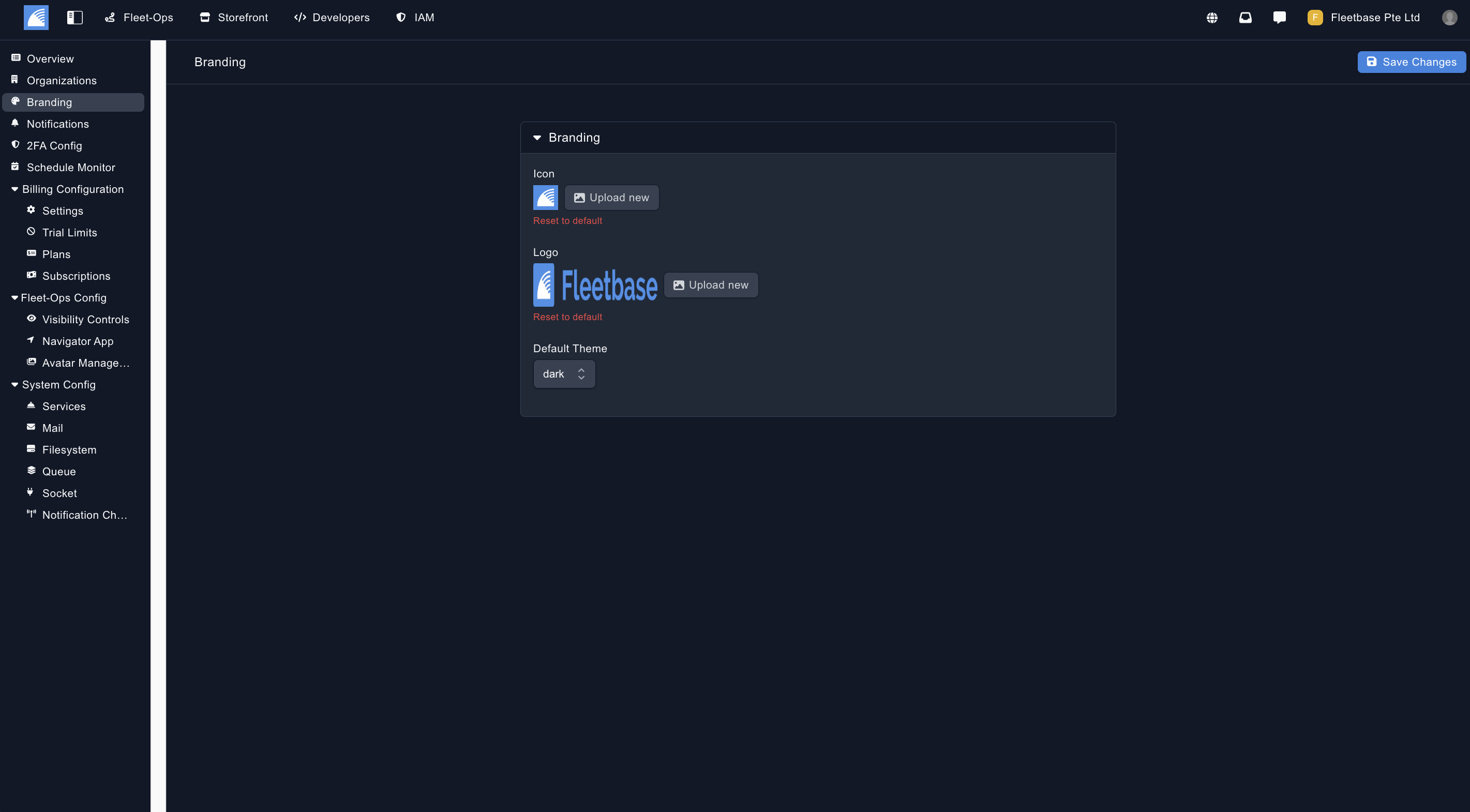
Branding
Upload your icon and logo for branding your Fleetbase instance.
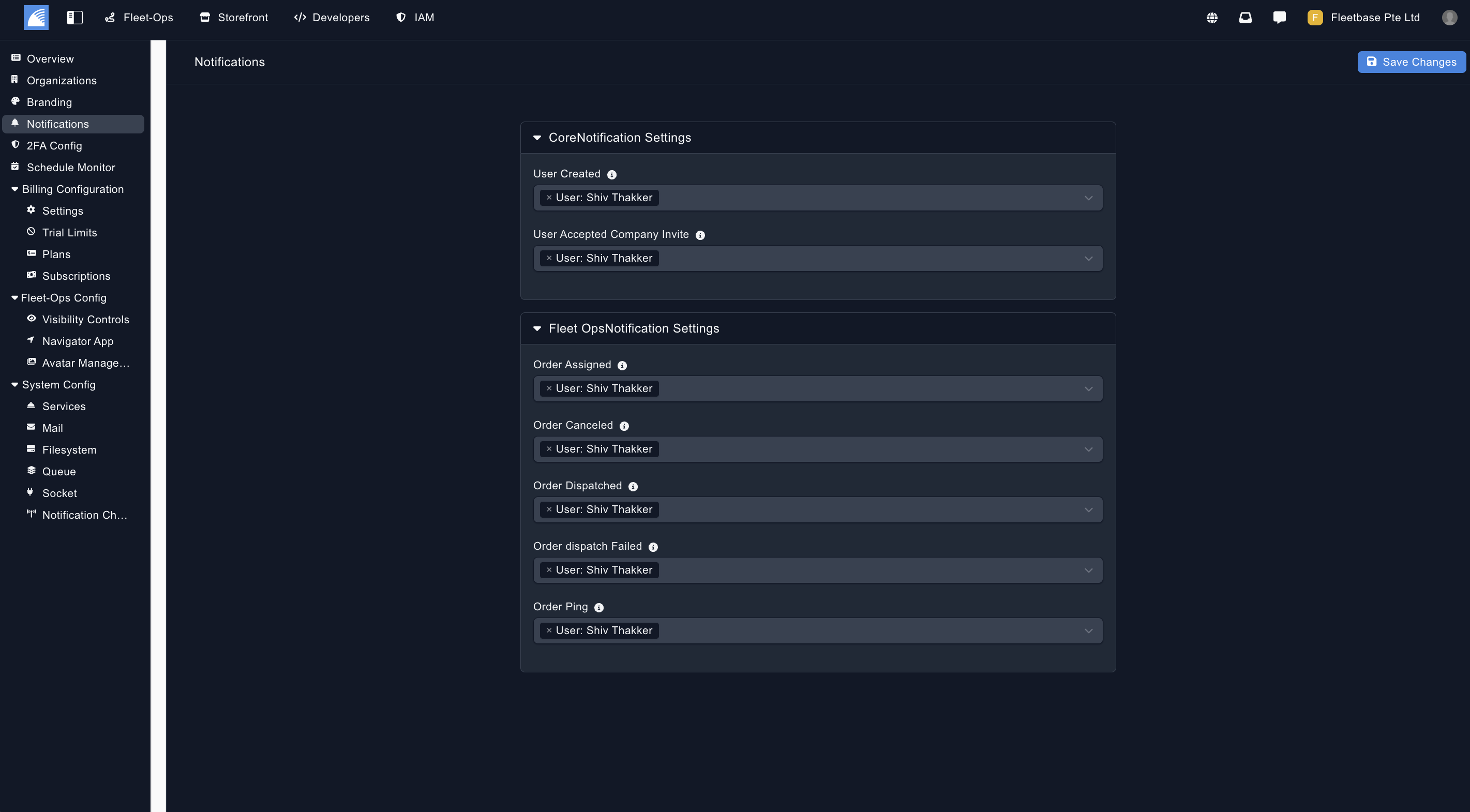
Notifications
Set up users to recieve system wide notifications.
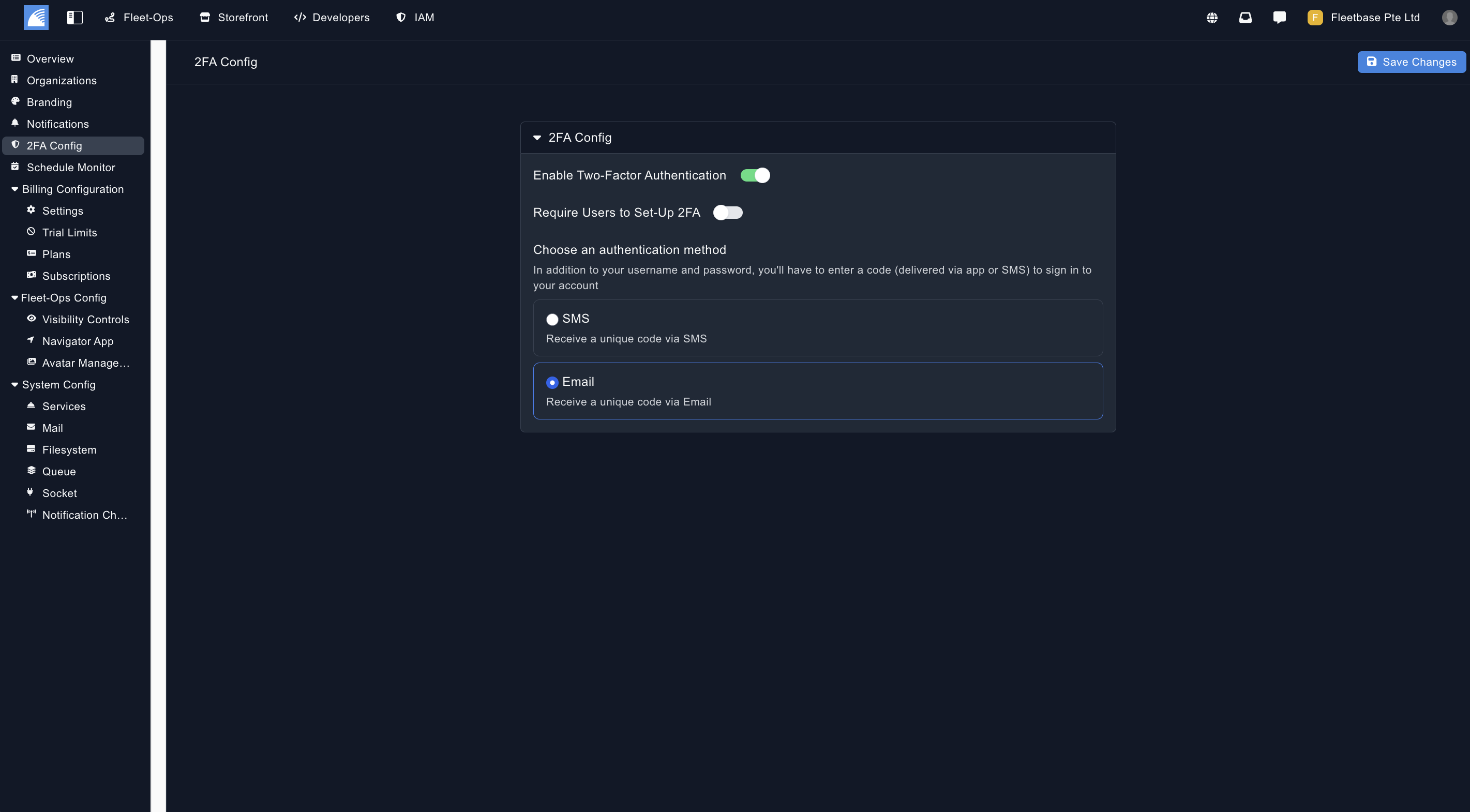
2FA Config
Configure the 2FA functions for your Fleetbase instance.
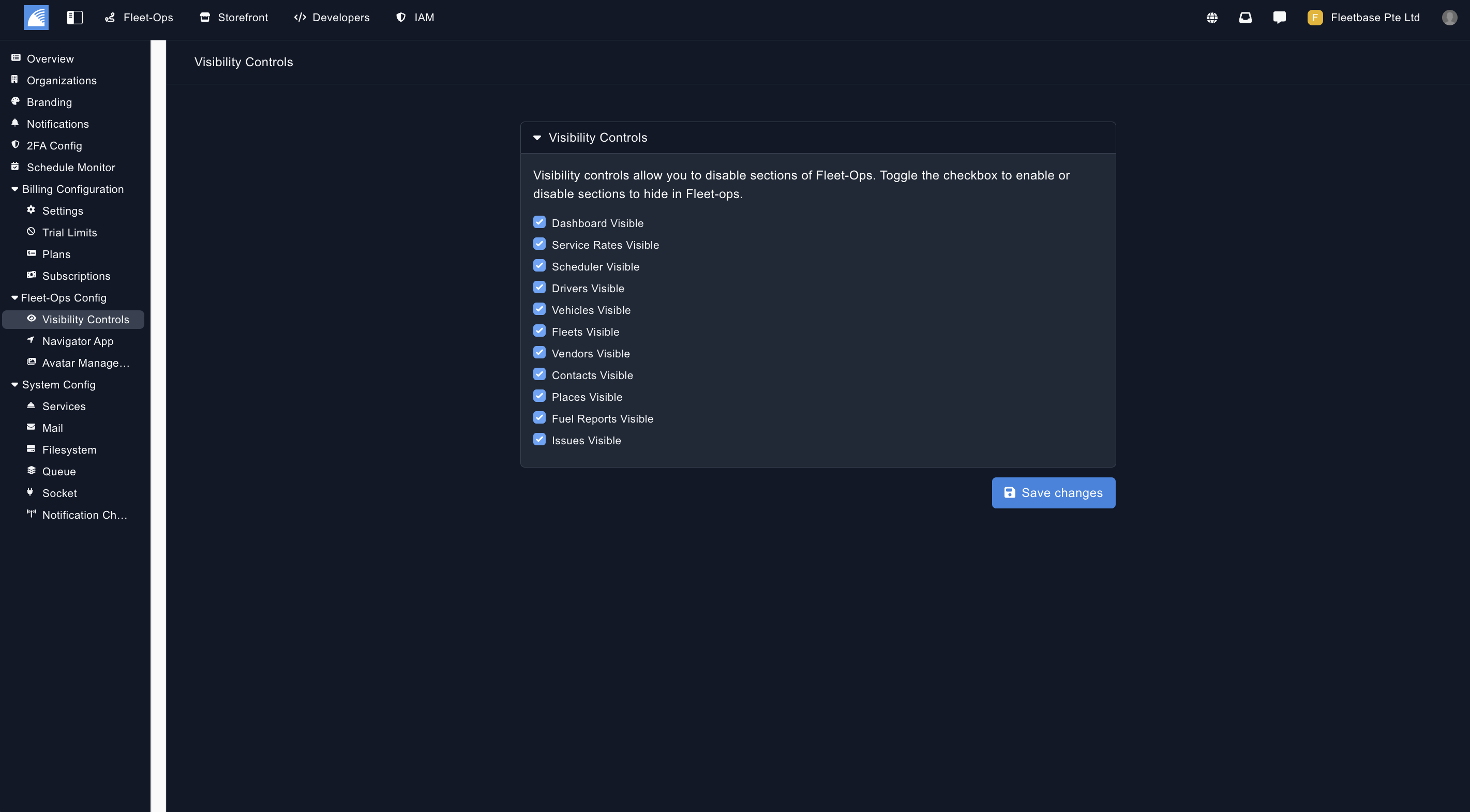
Visibility Controls
Select which FleetOps modules are visibile to the users of your Fleetbase instance.
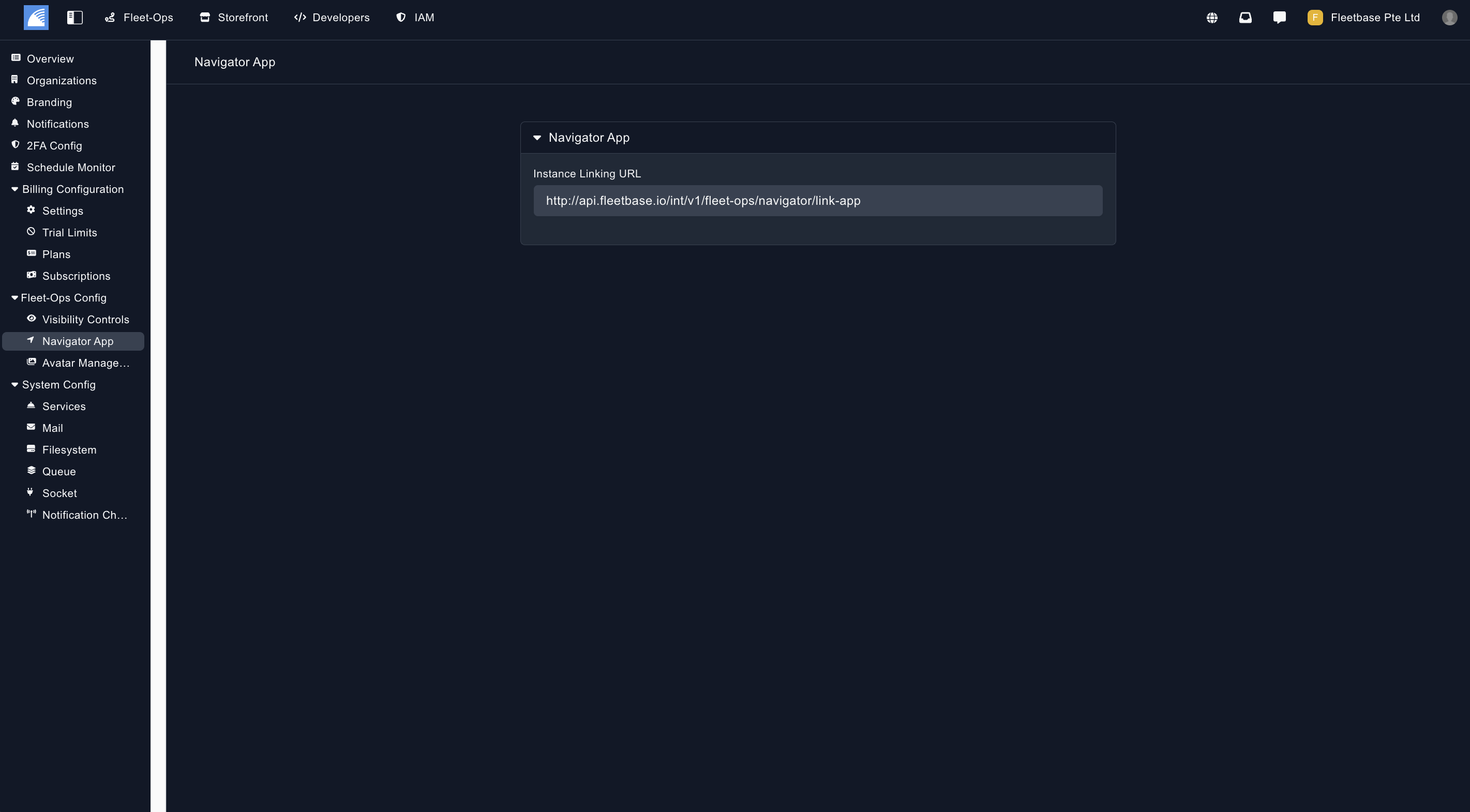
Navigator App
To use our existing published Navigator App with your Fleetbase instance, you need to create a instance linking URL. You can do so in the screenshot below.
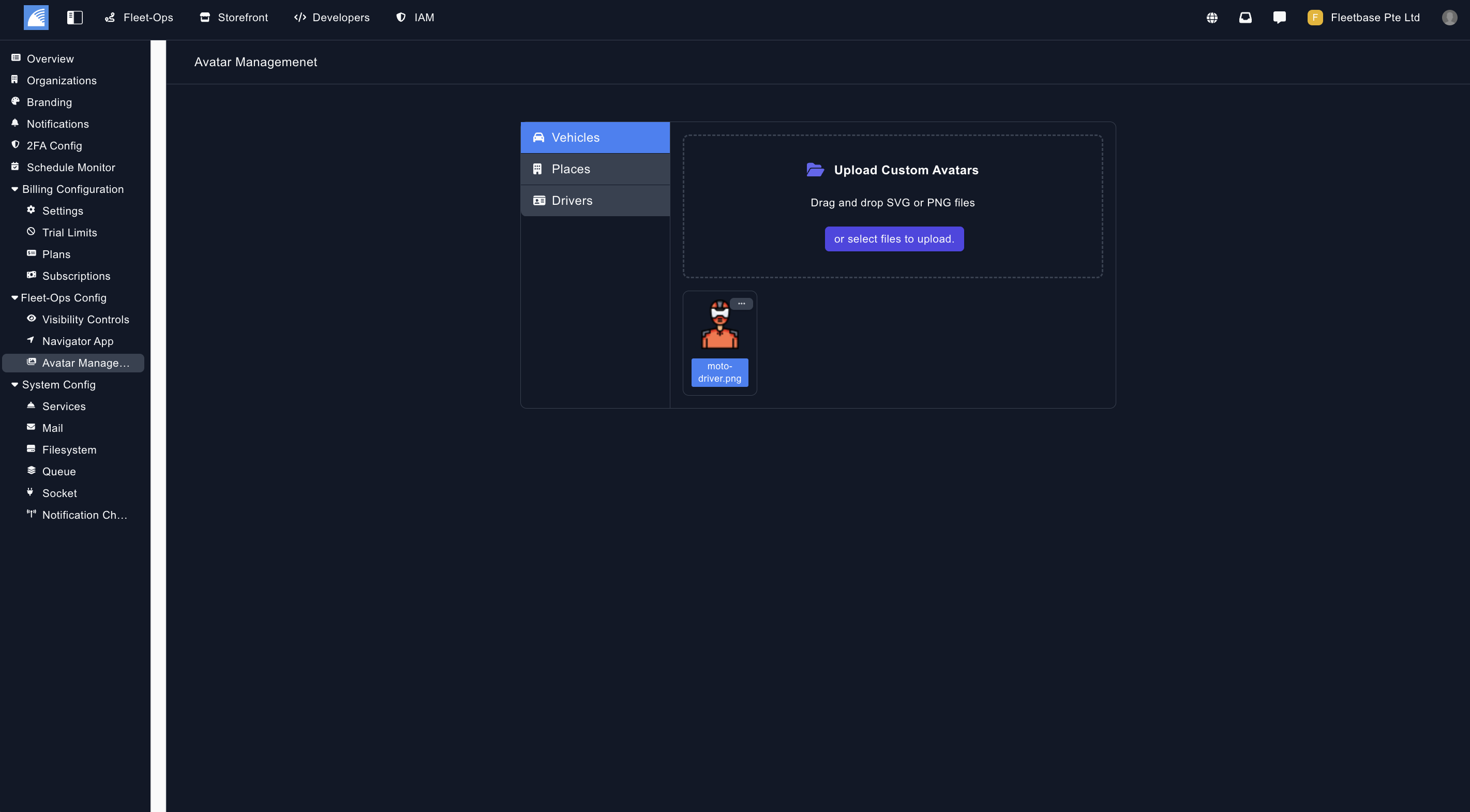
Avatar Management
Create an upload the avatars that you want users to use in your Fleetbase instance for vehicles, places and drivers.
Services
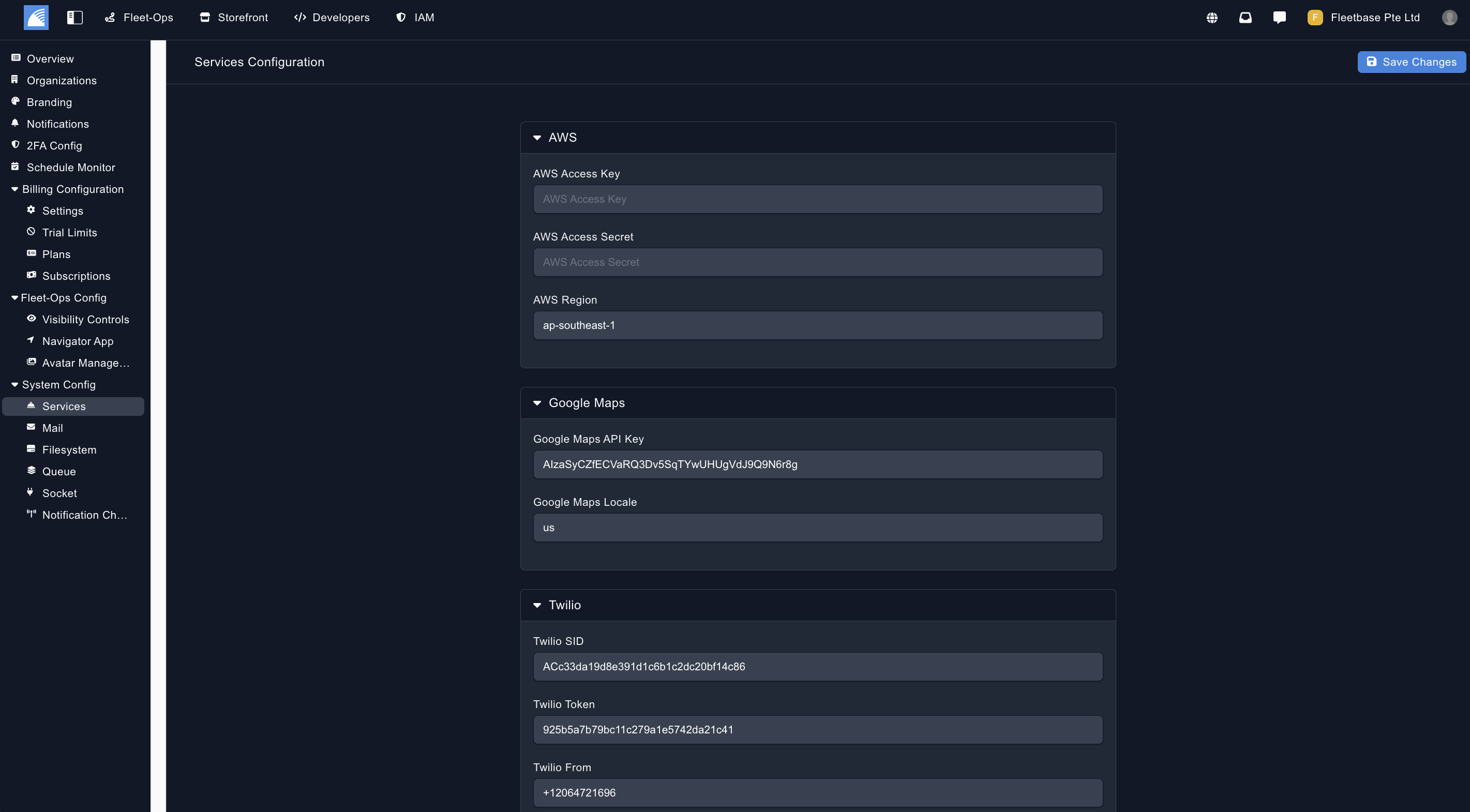
Add in your API Keys for 3rd party services such as Google Maps, AWS, Twilio & Sentry in the Services section.
Mail Config
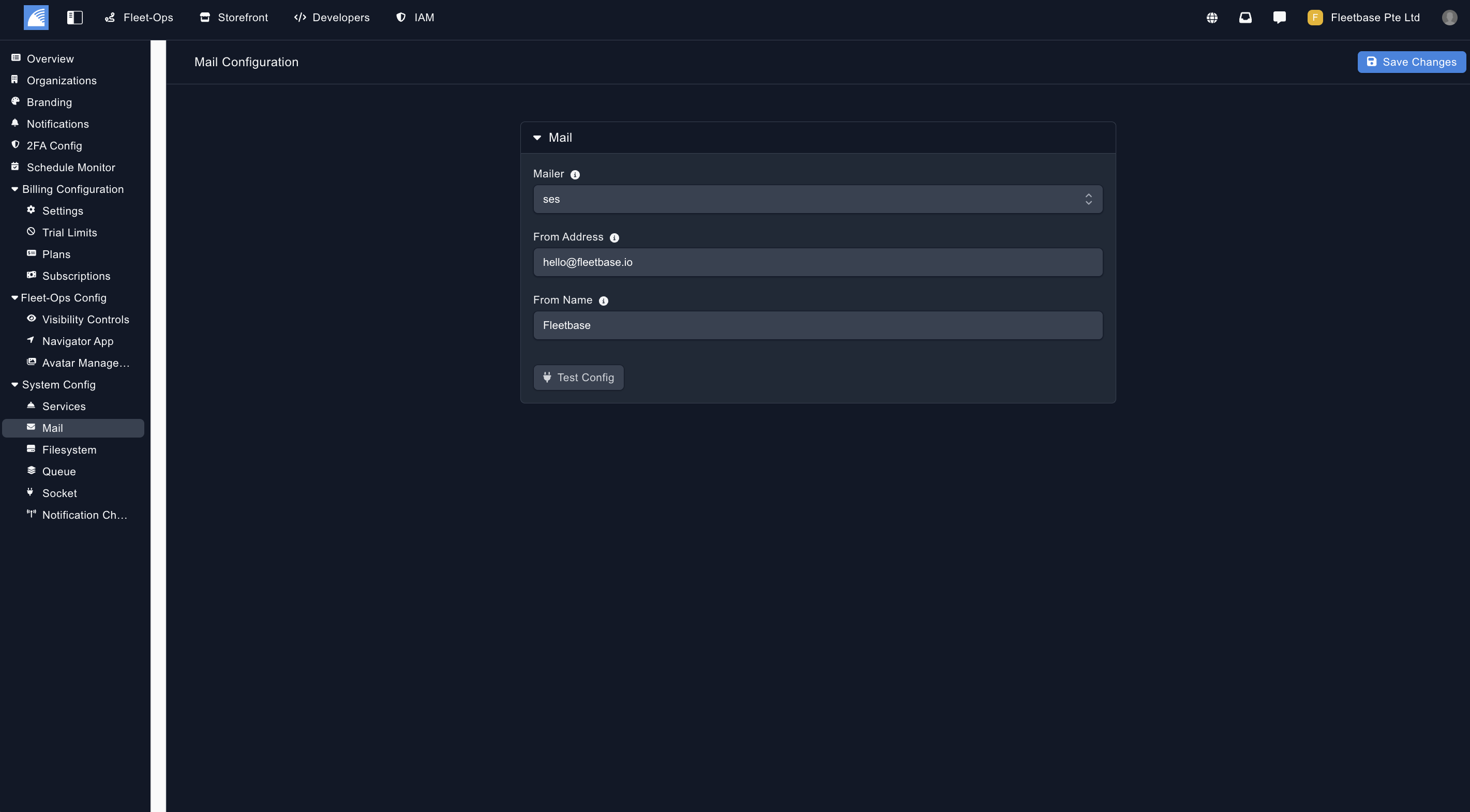
Set up your mail server for sending emails from your Fleetbase instance.
Filestorage
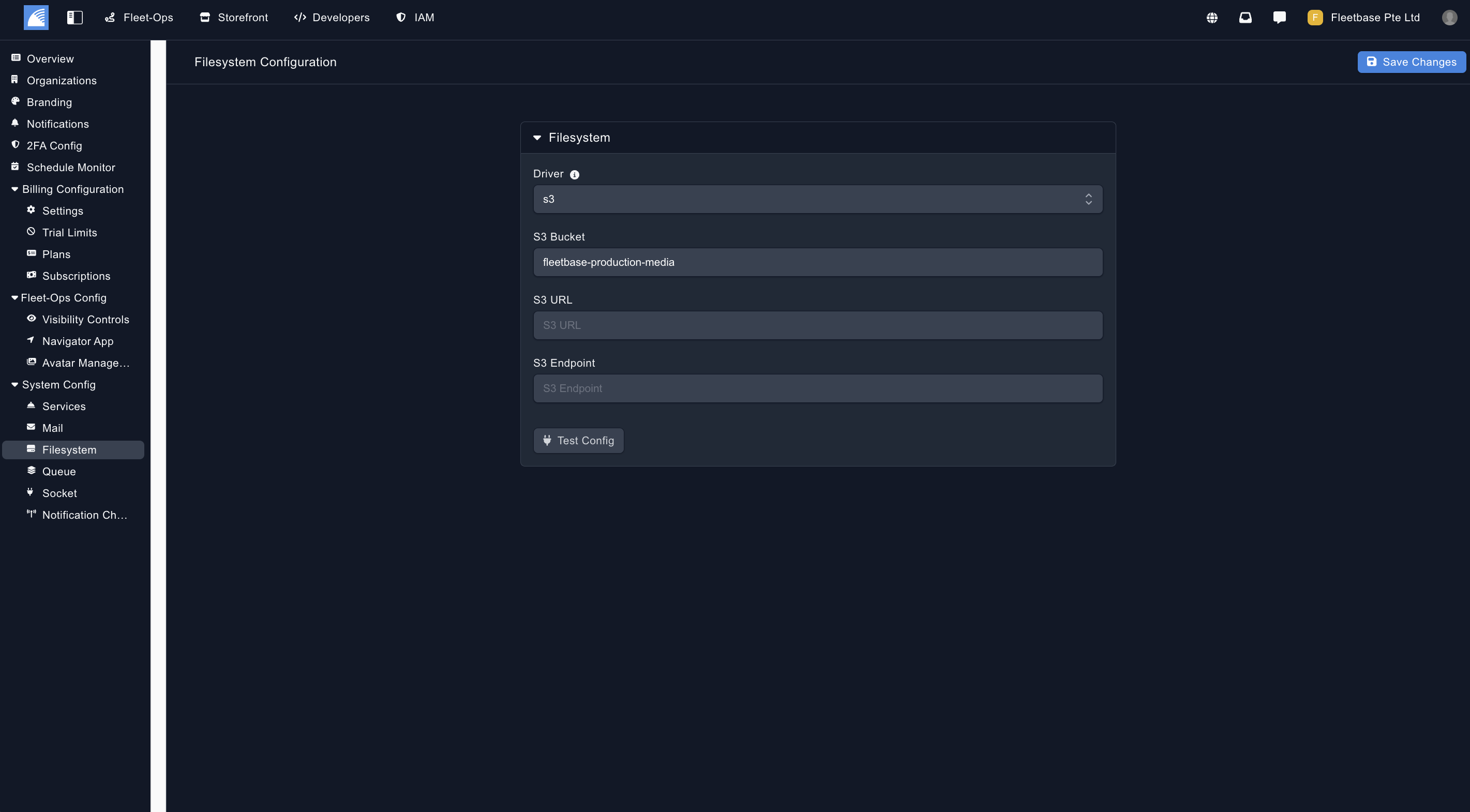
Set up your file storage configurations so users can upload files in your Fleetbase instance.
Queue Config
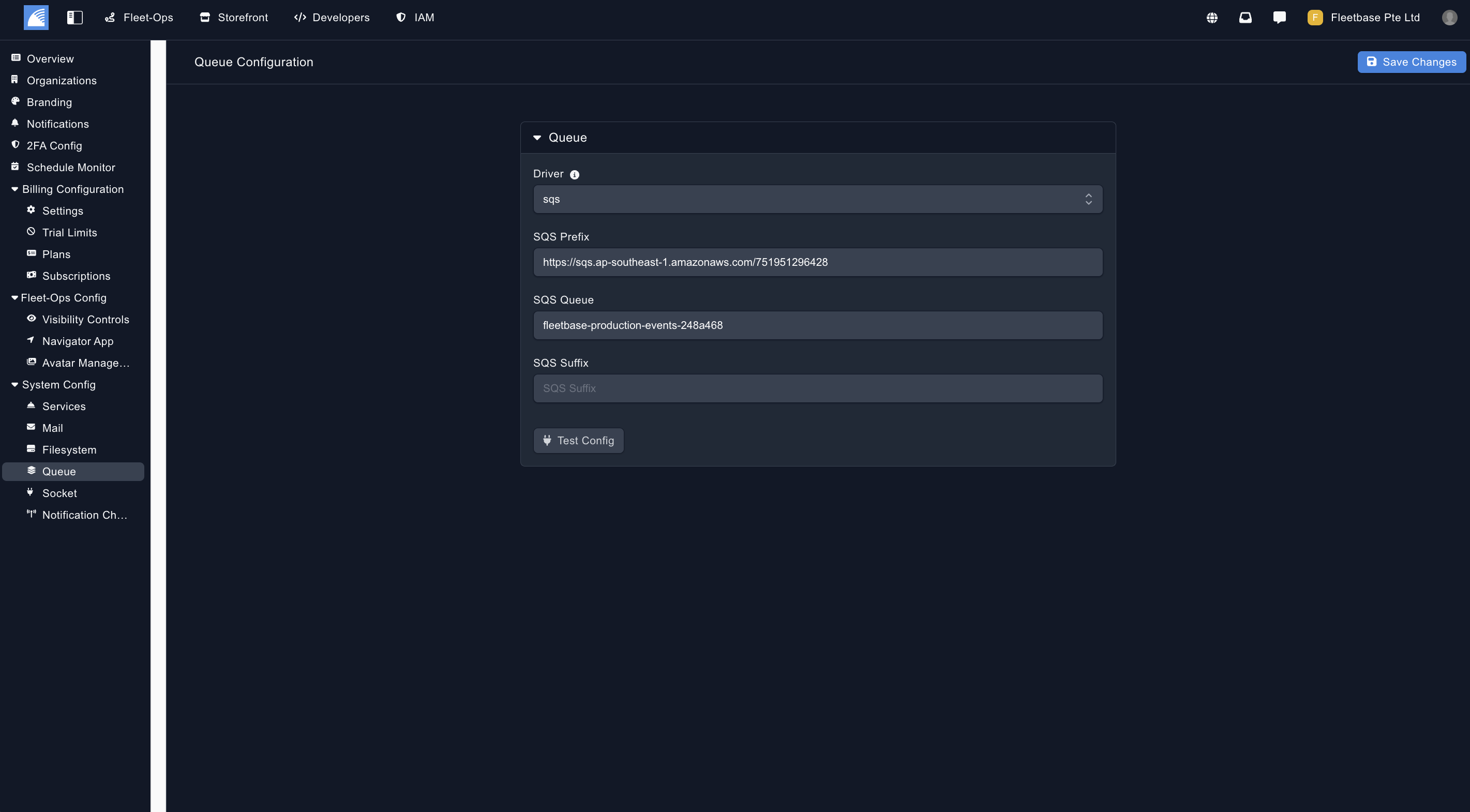
Set up your queue service for your Fleetbase instance.
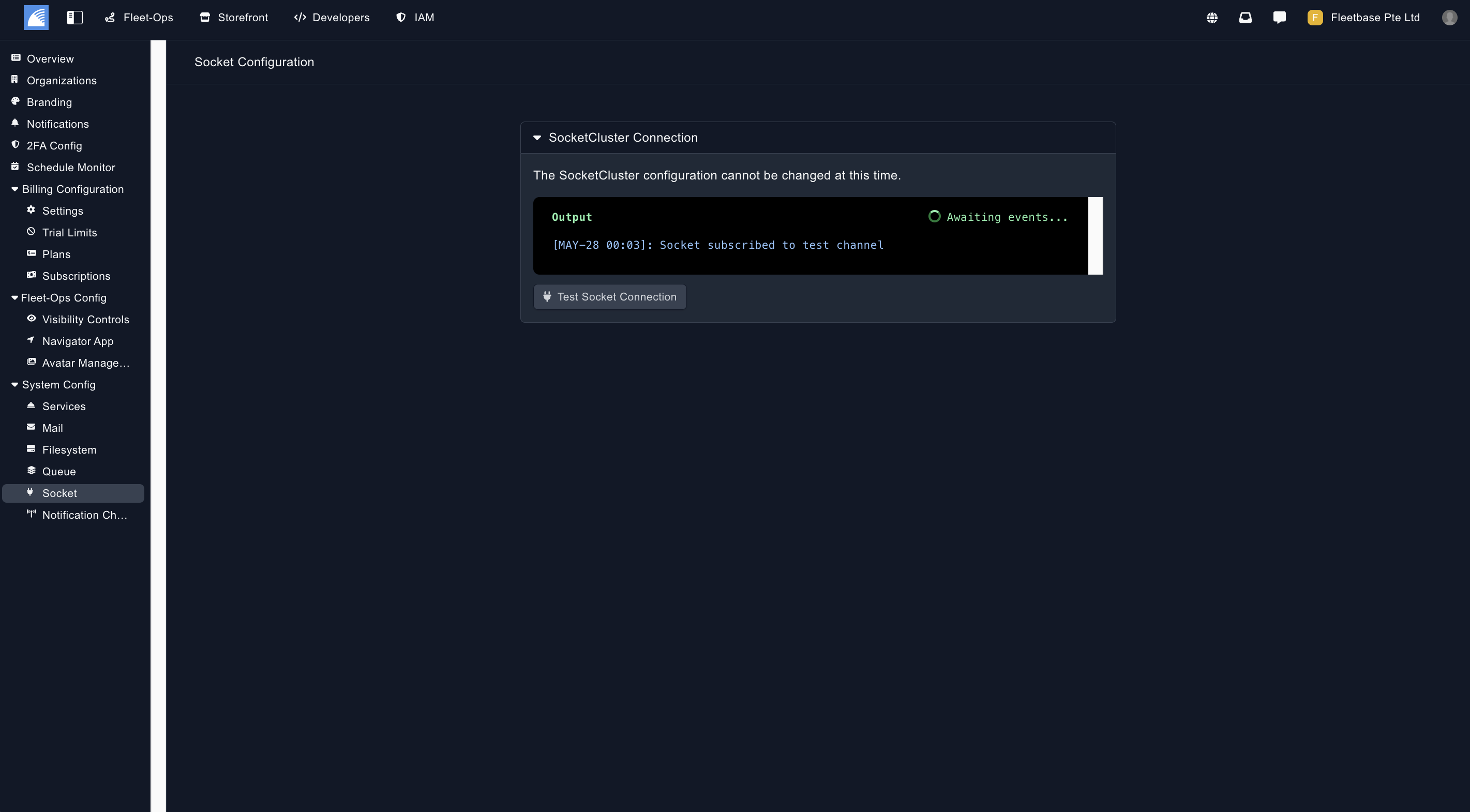
Socket Cluster
Test socket connection.
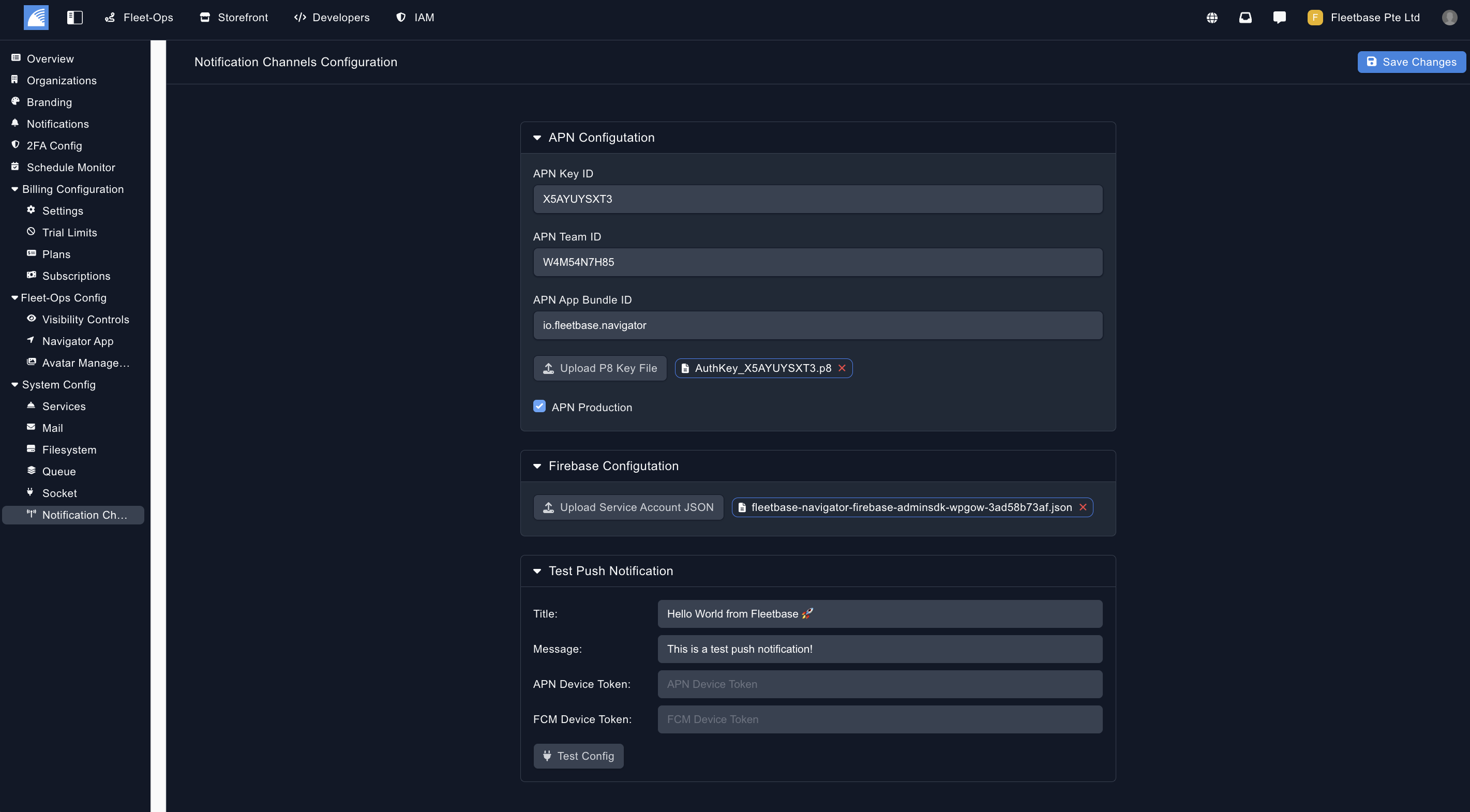
Notification Channels
Set up notifications system wide for your Fleetbase instance.